Play your first sound
For your first check, place the dummy head manually and verify the sound without using VRChat camera sync.
- Start SteamVR.
- Start OVR-DummyHeadMic. It starts without showing a window and sits in the Windows system tray (the notification area at the bottom right of the screen). Click the tray icon to open the settings window.
- Under Audio device settings, select the Normal audio route and choose the input and output devices.
- Put on your headphones, speak into the microphone, and confirm that you can hear the audio.
- Check your controller bindings. A typical binding is left X + right A, or both A buttons; hold them while moving the dummy head with your right hand.
- Move to either side of the dummy head and confirm that the apparent voice position changes.
- If you are streaming or recording, configure audio capture in OBS.
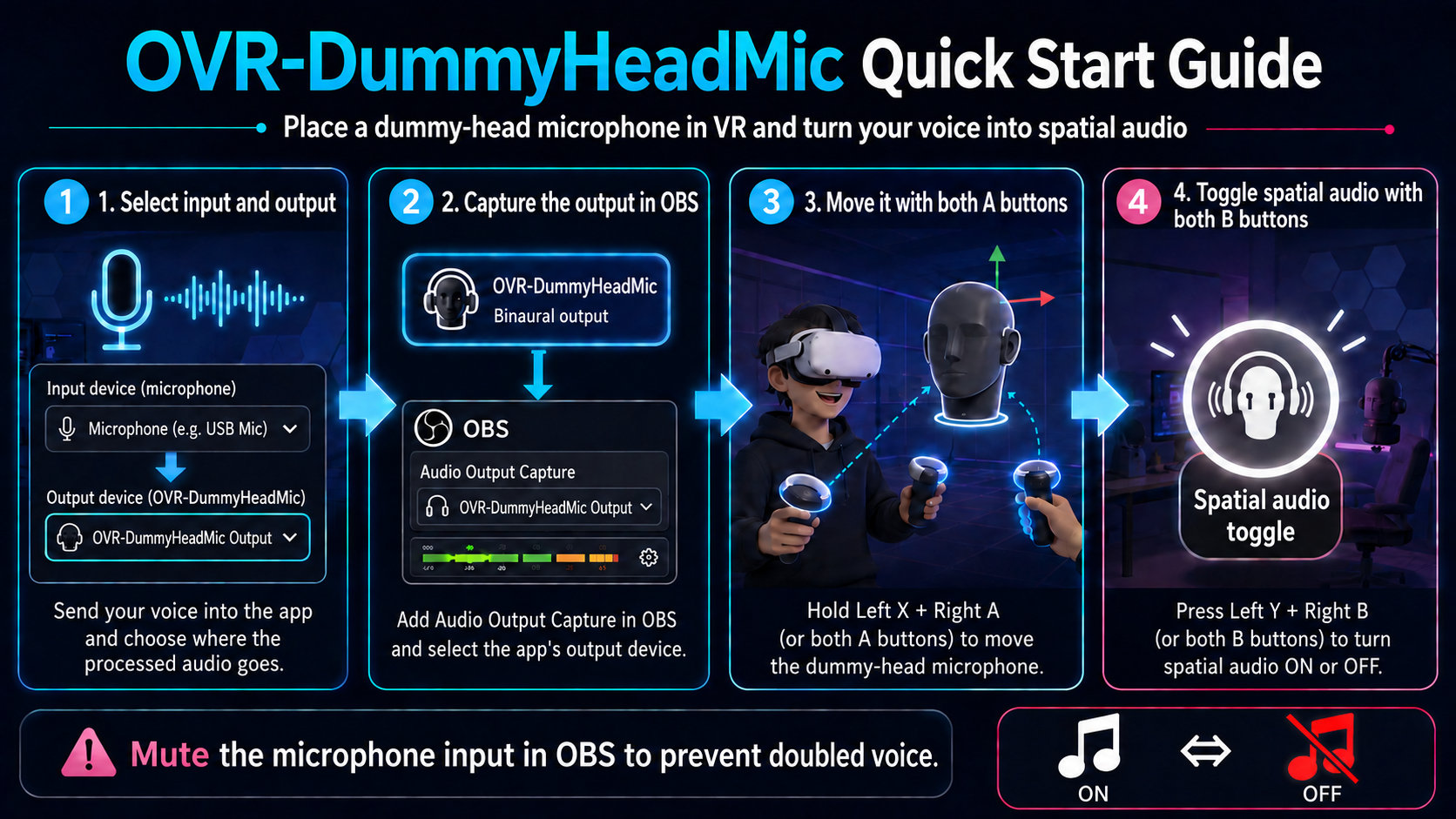
An overview of input and output, OBS capture, moving the position, and switching spatial audio.
If the sound position is hard to tell
Place the dummy head in front of you, then move well to the left and right from a short distance away. For an initial check, set the room reverb to “No reverb” so you can judge the direct sound position more easily.